
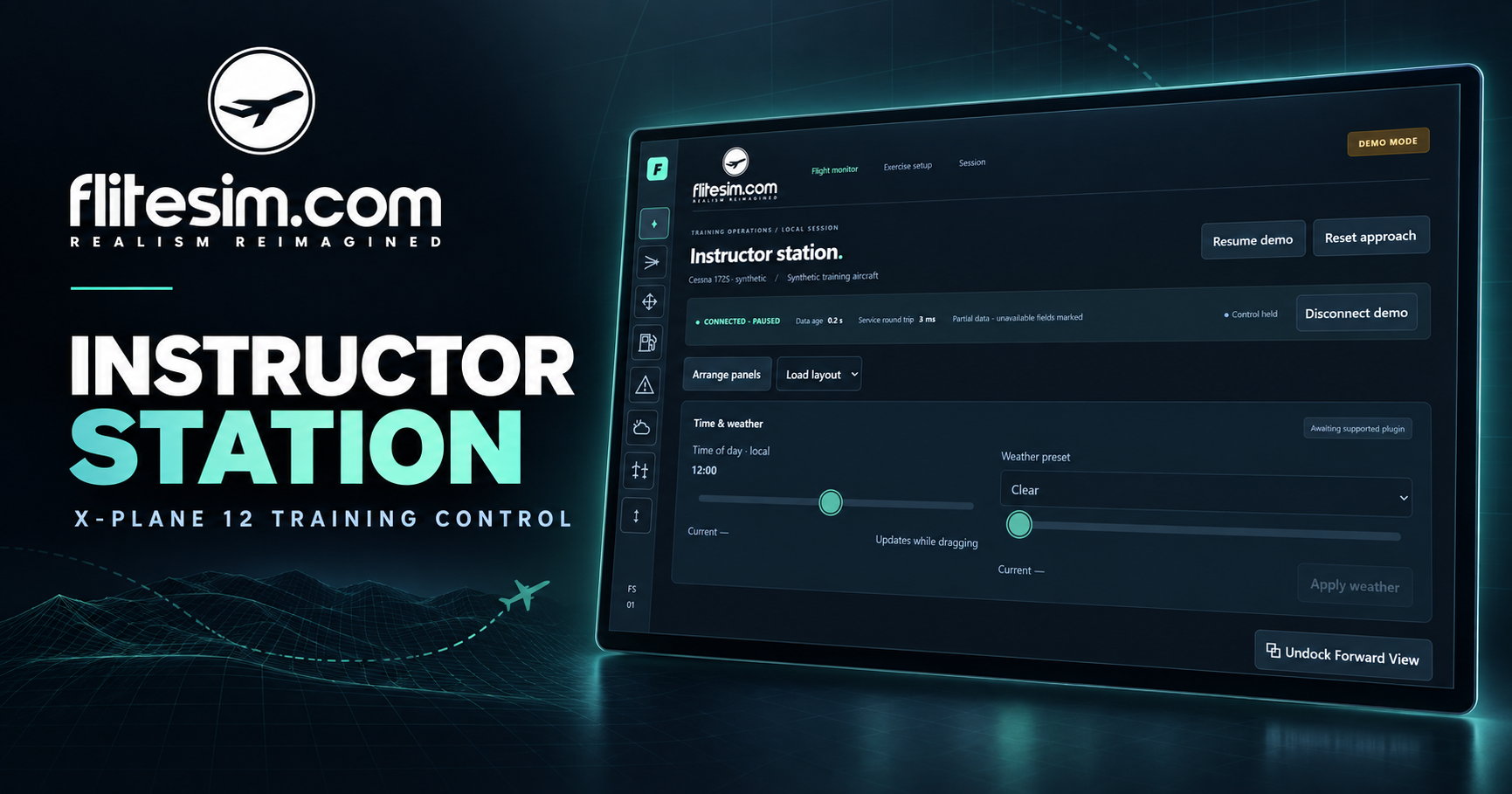
FliteSim.com Instructor Station (IOS)
Set Up Every Lesson. Watch Every Manoeuvre. Change the Scenario Without Interrupting the Student.
Bring exercise setup, live flight monitoring and simulator control together in one touchscreen-friendly instructor interface.
FliteSim Instructor Station helps instructors spend less time navigating simulator menus and more time observing, teaching and adapting the lesson. Reposition the aircraft, change the weather, introduce failures, monitor instruments and flight controls, manage circuit traffic, and review the session from a browser on the simulator PC.
From a student’s first circuit to a demanding instrument approach, the information and controls you need remain within easy reach.
Main Instructor Dashboard
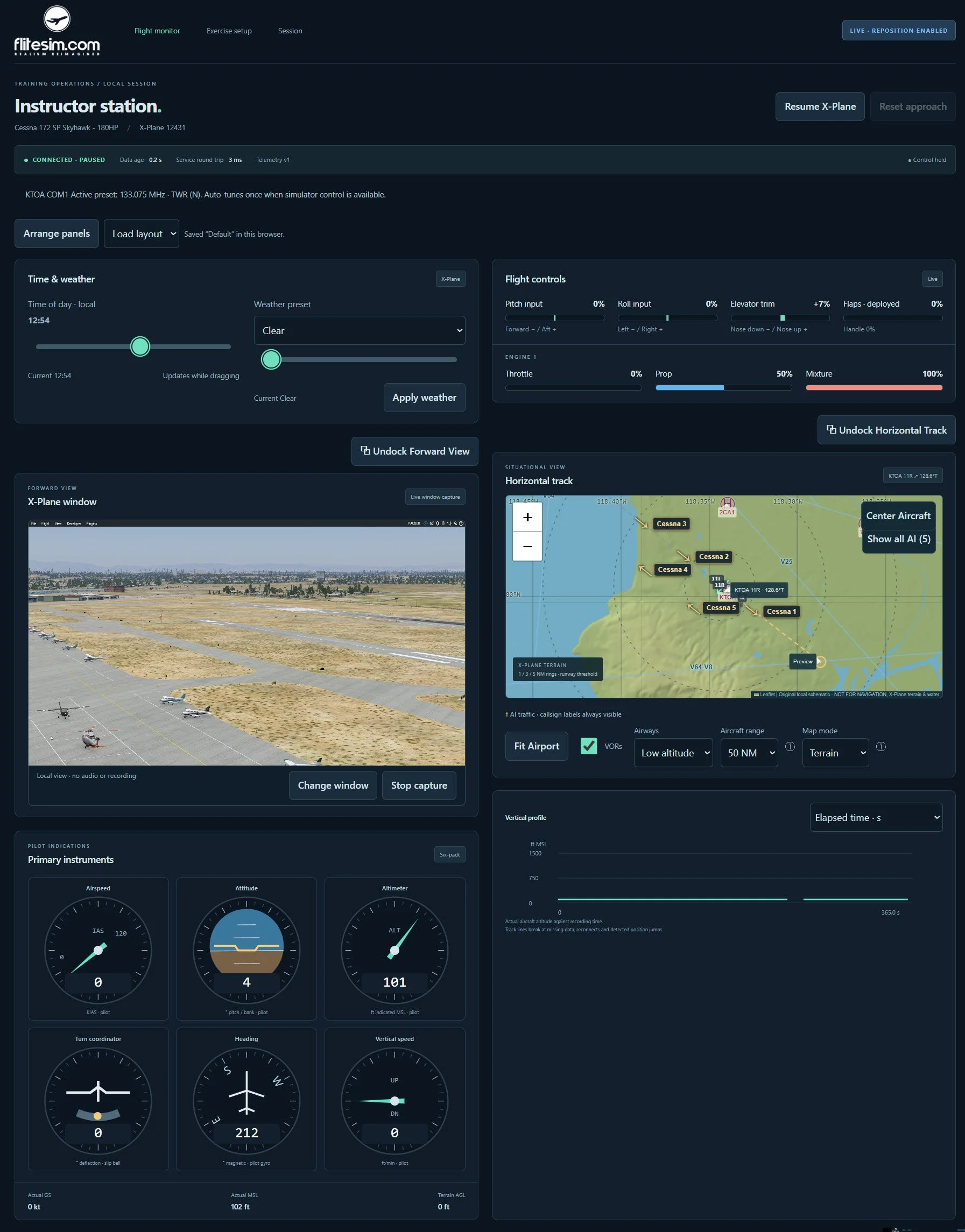
The main Instructor Station dashboard gives the instructor an immediate view of the aircraft and the training session.
Monitor the familiar six-pack instruments, aircraft position, horizontal track, vertical profile, flight-control inputs, trim, flap position and available engine controls. Keep NAV and COMM frequencies within reach, pause the simulator when an explanation is needed, and resume when the student is ready.
Forward View can display a local browser capture of the X-Plane window, allowing the instructor to relate the pilot’s visual picture to the aircraft’s instruments, controls and flight path. Forward View and Horizontal Track can also be undocked so they remain visible while the instructor moves between other workspaces.
Arrange the dashboard around the lesson. Move panels, select full- or half-width layouts and save named arrangements for different training activities.
Main Instructor Dashboard features:
Live aircraft and connection status with clear stale-data indications.
Primary flight instruments plus actual groundspeed, altitude and available terrain height.
Pitch, roll, elevator-trim, flap and engine-control monitoring.
Horizontal track, vertical profile and optional X-Plane window capture.
NAV/COMM frequency monitoring, editing and active/standby swapping where supported.
X-Plane pause, resume and native replay controls.
Local training-session recording, playback and download.
Aircraft Repositioning
Put the Aircraft Where the Lesson Begins
Repeat the manoeuvre that matters without flying the entire route again.
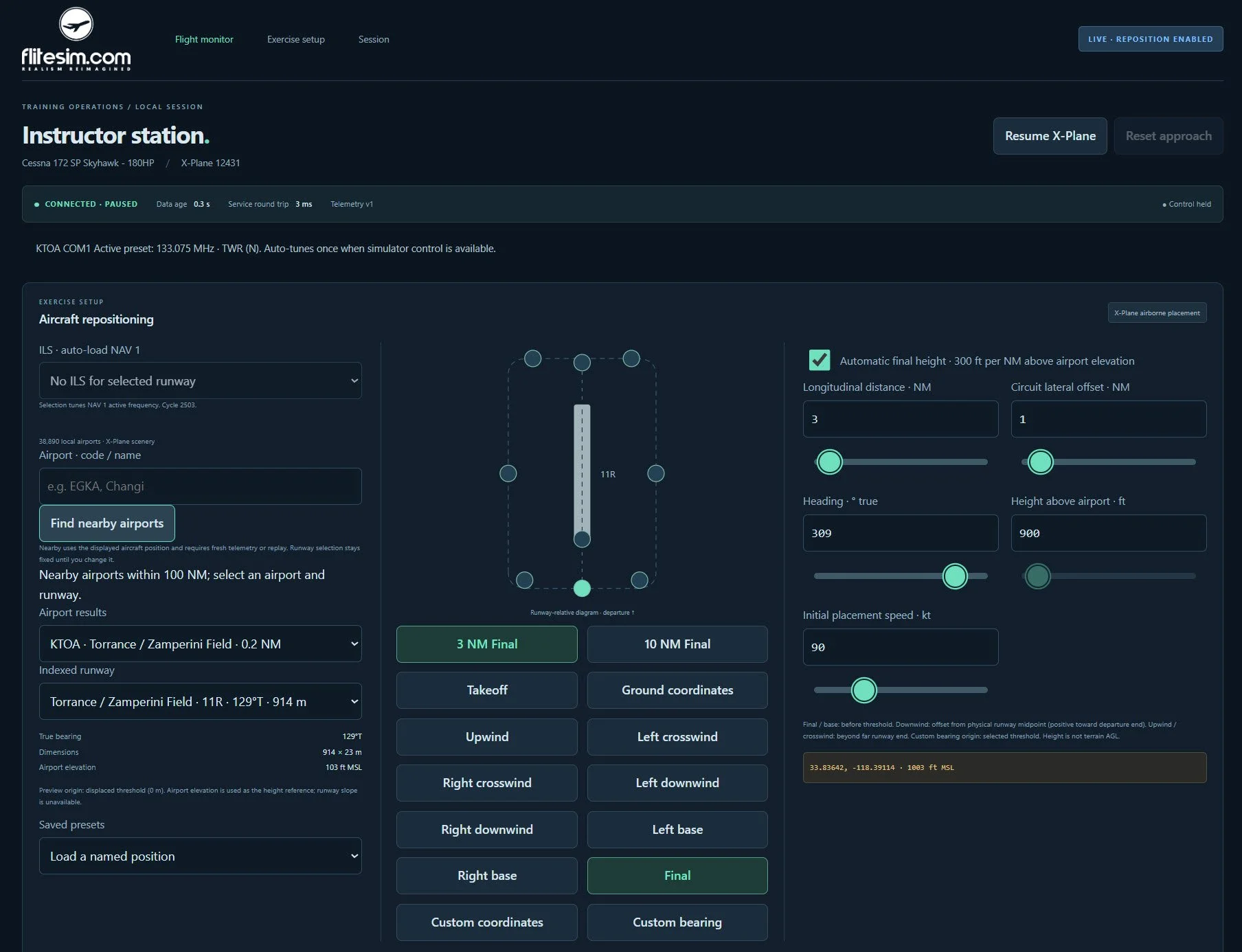
Aircraft Repositioning lets the instructor search the installed X-Plane airport database, select a runway and preview the next starting position. Place the aircraft for takeoff, upwind, crosswind, downwind, base or final, or create a custom airborne or ground position.
Ready-made 3 NM and 10 NM final options reduce setup time. For a tailored exercise, adjust distance, circuit offset, heading, height and initial speed using touchscreen-friendly sliders and precise value fields. Save named positions and complete runway setups for consistent lessons across students and sessions.
Airborne placement leaves X-Plane paused so the instructor can verify the setup before handing control back to the student.
Aircraft Repositioning features:
Search airports by code or name, or find airports near the aircraft.
Review runway direction, dimensions and airport elevation.
Choose takeoff, circuit, final or custom positions.
Automatically calculate a three-degree final-approach height.
Configure heading, speed, altitude, distance and lateral offset.
Save repeatable exercise setups.
Automatically tune NAV 1 when a supported runway ILS is selected.
Instrument Approach
Make Instrument Approaches Easier to See and ExplainBring exercise setup, live flight monitoring and simulator control together in one touchscreen-friendly instructor interface.
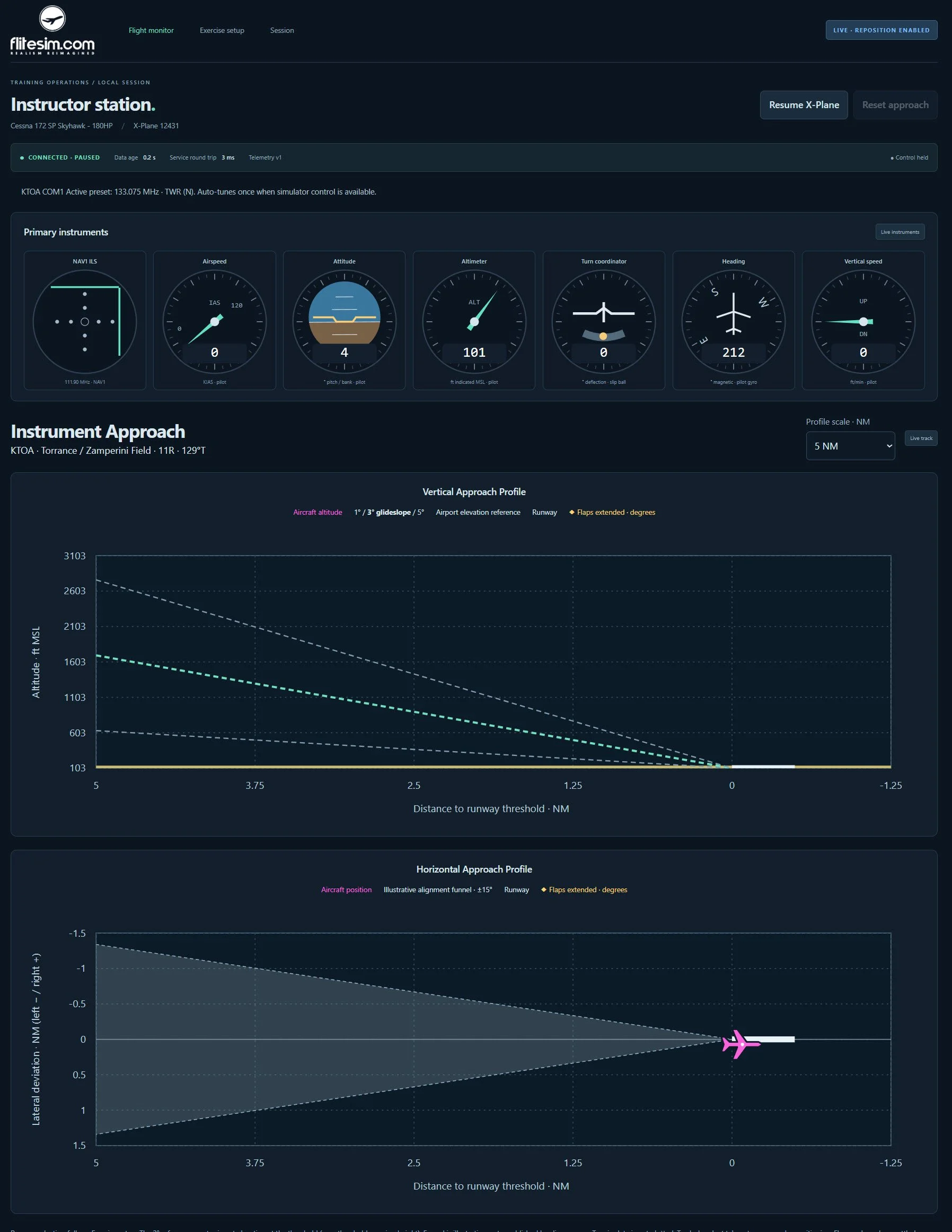
The Instrument Approach workspace combines the pilot’s instruments with runway-relative vertical and horizontal flight-path displays.
Follow the six-pack and NAV 1 ILS indications while the Vertical Approach Profile plots the aircraft’s altitude against distance to the runway threshold. A central three-degree reference, supported by one-degree and five-degree guide lines, makes a high, low or unstable descent easier to identify and discuss.
The Horizontal Approach Profile shows the aircraft’s lateral path relative to the extended runway centreline. Select a 5, 10, 15 or 20 nautical-mile scale, follow the aircraft marker and review reported flap-extension points along the approach.
Instead of describing a deviation only after landing, the instructor can show the student where it developed and relate it to the instrument indications and aircraft configuration.
Instrument Approach features:
NAV 1 localizer and glideslope indications.
Runway-relative vertical and horizontal approach profiles.
Selectable profile scale from 5 to 20 NM.
Aircraft position markers and flight-path history.
Flap-extension markers with reported flap angles.
Live and recorded-session review.
Custom Weather
Change the Weath Conditions as the Lesson Develops
Move from a calm VFR exercise to demanding weather without leaving the instructor interface.
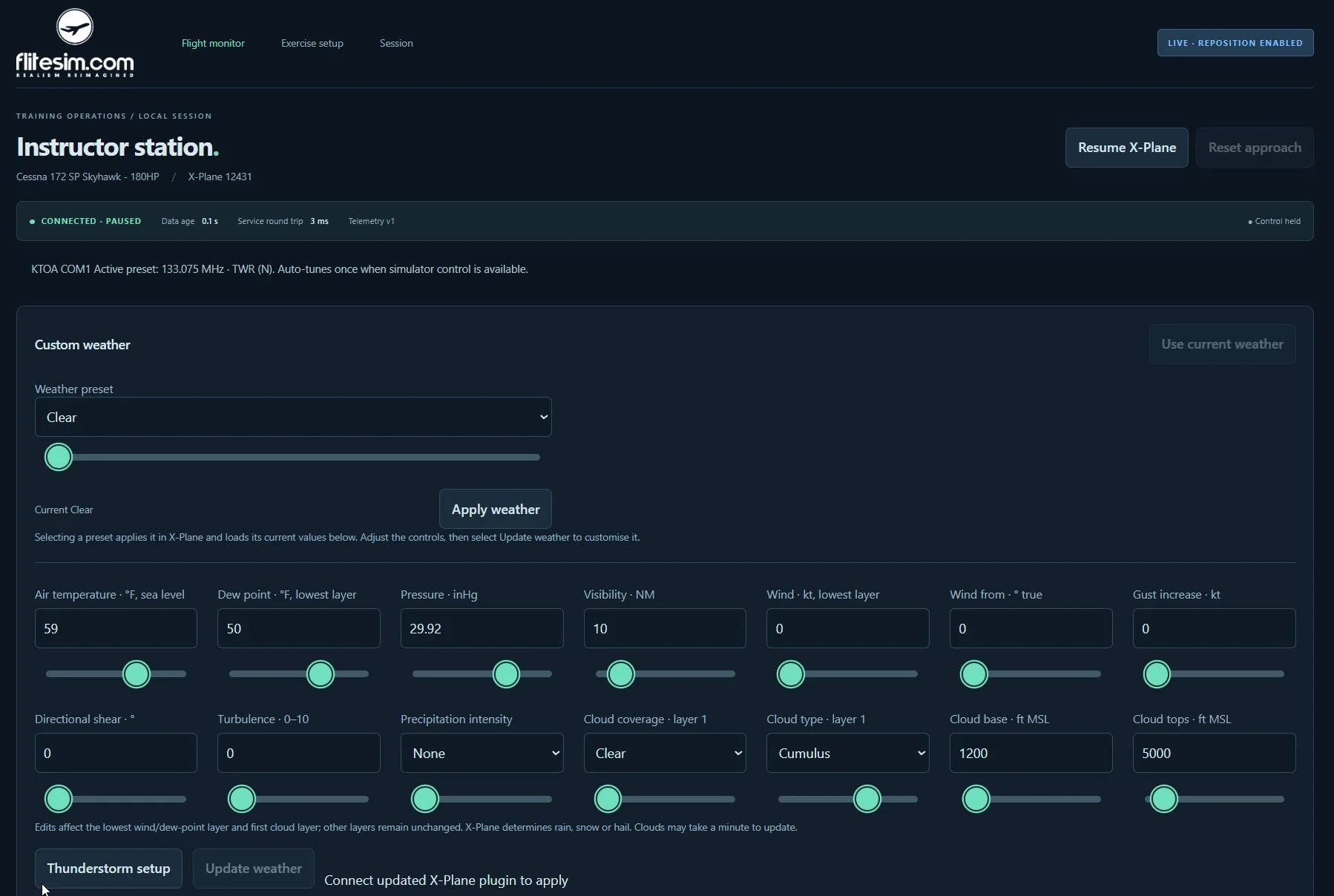
Start with a weather preset, use the current simulator weather as a baseline or refine the conditions with direct controls.
Adjust temperature, dew point, pressure, visibility, wind speed and direction, gust increase, directional shear, turbulence, precipitation and the first cloud layer.
Touch-friendly sliders make broad changes quick, while value fields support precise setup. Save useful combinations as favourites so recurring exercises can begin with consistent conditions.
The dashboard also includes a time-of-day control for daylight, dusk and night exercises.
Custom Weather features:
Quick weather presets for common VFR, marginal, IFR and convective scenarios.
Visibility, pressure, temperature and dew-point controls.
Wind direction, speed, gust, shear and turbulence controls.
Precipitation intensity and first-layer cloud controls.
Cloud type, coverage, base and top settings.
Thunderstorm setup and saved weather favourites.
Local time-of-day adjustment.
Fuel & Center of Gravity
Turn Loading Changes into Practical Teaching
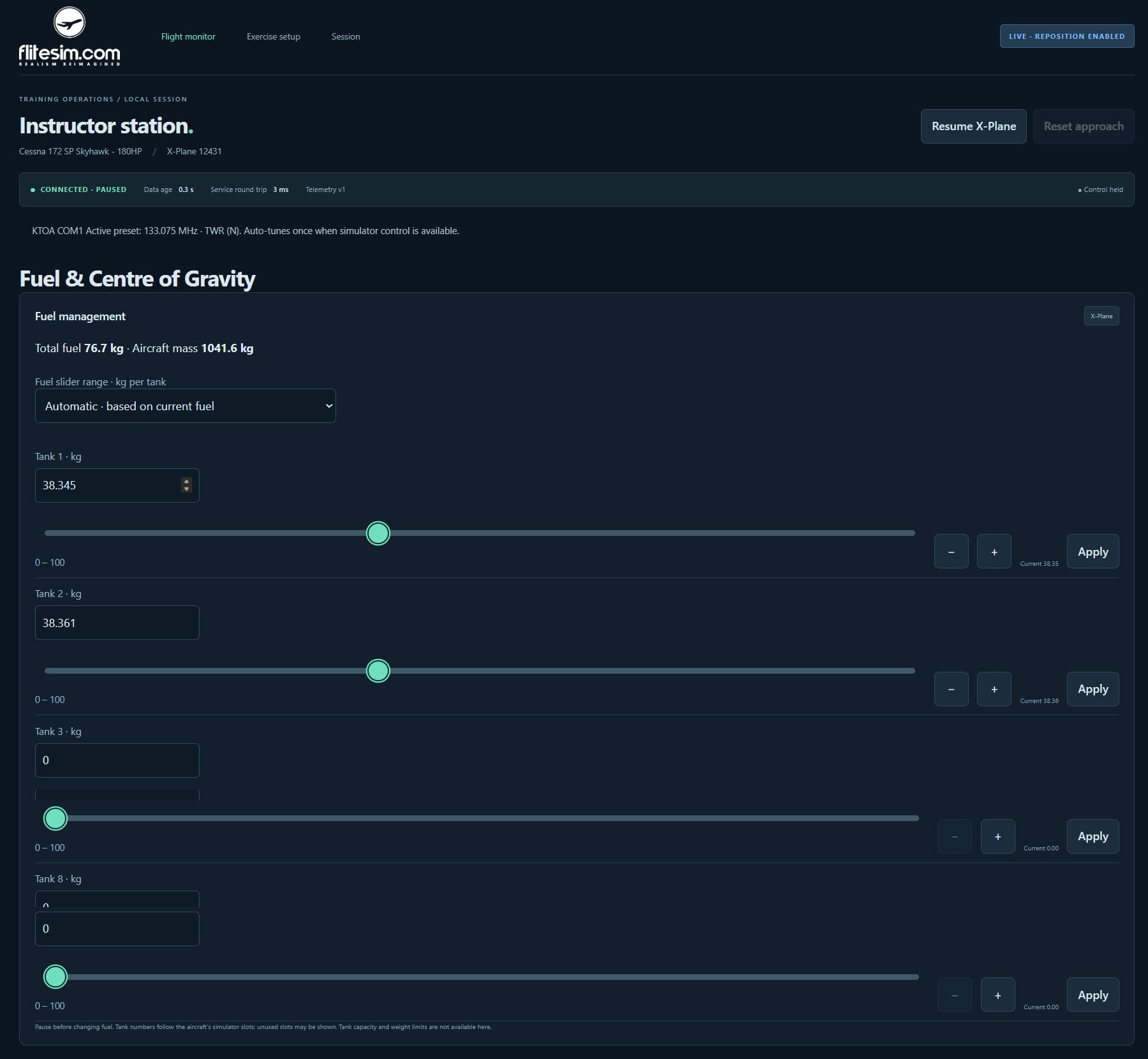
Use the Fuel & Centre of Gravity workspace to explore how aircraft loading affects handling, performance and operating decisions.
Adjust supported fuel tanks with sliders or precise values, review the reported total fuel and aircraft mass, and change the aircraft’s longitudinal centre-of-gravity offset. Because the controls are available from the instructor station, loading scenarios can be prepared without interrupting the flow of the lesson.
Tank availability and adjustment limits follow the aircraft and the values exposed by X-Plane. The centre-of-gravity control changes the simulator’s longitudinal CG offset; it complements, rather than replaces, formal weight-and-balance planning.
Fuel & Center of Gravity features:
Individual supported fuel-tank controls.
Reported total fuel and aircraft mass.
Longitudinal centre-of-gravity offset adjustment.
Touch sliders with precise numeric entry.
Pause-protected changes with simulator readback where supported.
Failure Management
Introduce Failures at the Right Moment
Create recognition, diagnosis and recovery exercises from a dedicated Failure Management workspace.
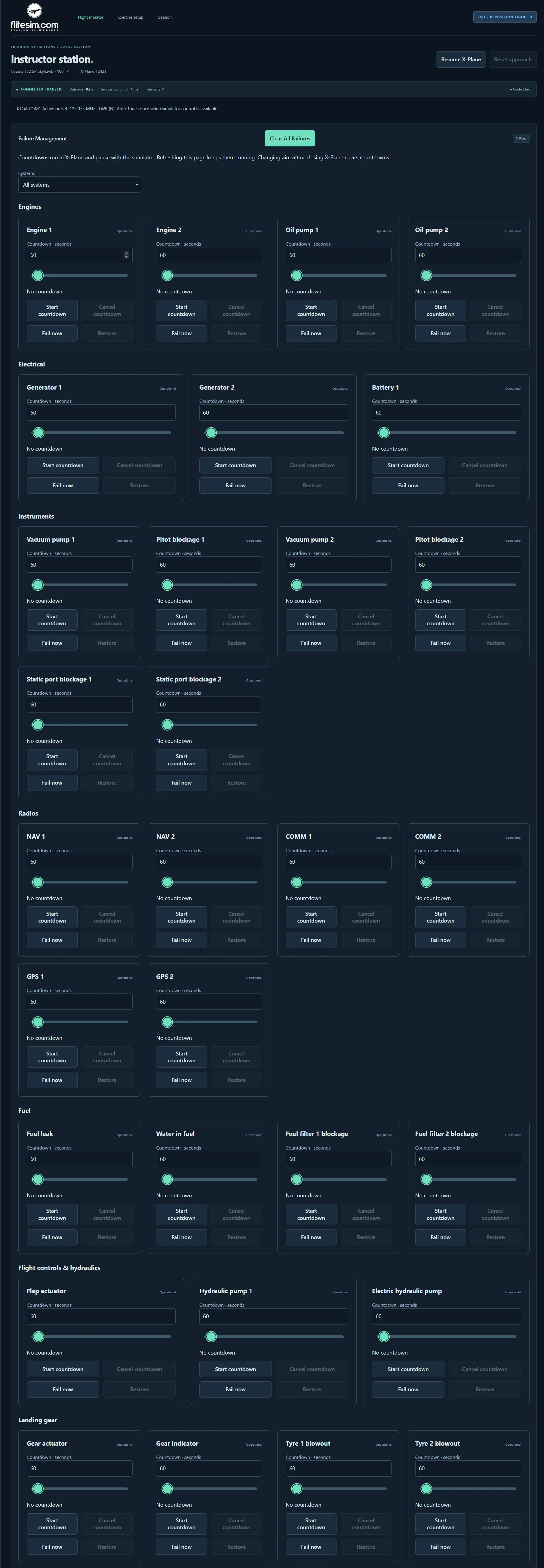
Choose from supported engine, electrical, instrument, radio, fuel, flight-control, hydraulic and landing-gear failures. Trigger a failure immediately or set an individual countdown so the event occurs later, allowing the instructor to observe the student before the scenario changes.
Each system can be restored independently. Pending countdowns can be restarted or cancelled, and Clear All Failures returns the supported controls to their normal state when the lesson is complete. Timers run inside the X-Plane plugin, pause with the simulator and continue even if the instructor changes browser pages.
Failure Management features:
Thirty-one supported failure controls in the current catalogue.
Category filtering for faster scenario preparation.
Immediate activation or a 1–3,600 second countdown.
Individual restore, restart and cancel controls.
Clear All Failures for a fast reset.
Failure status and countdown telemetry where supported.
Active Traffic Circuit Training
Build a Multi-Aircraft Active Traffic Circuit Environment
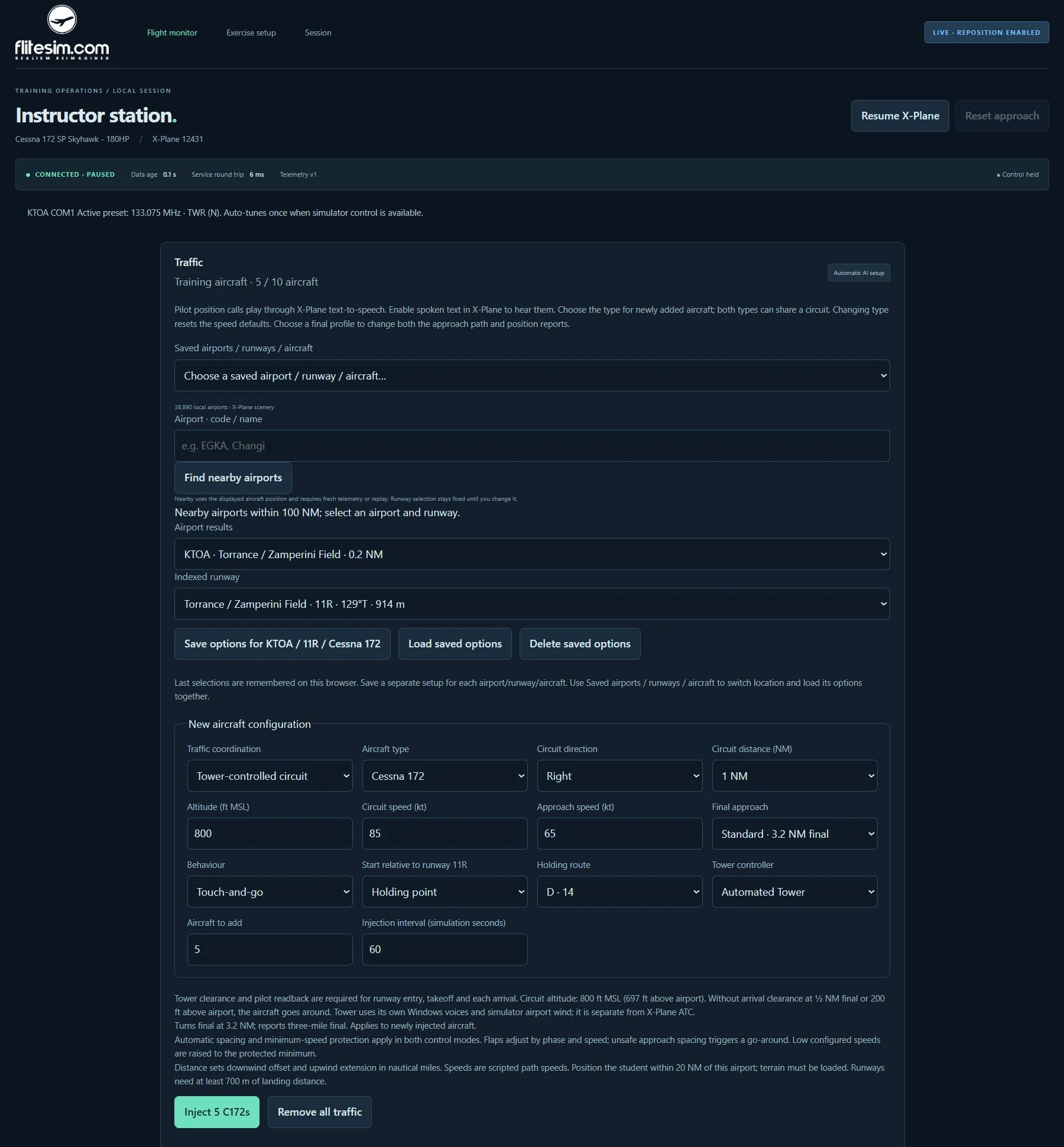
The Traffic workspace adds purposeful training aircraft to the selected airport and runway, creating a more active environment for circuit awareness, radio work and spacing decisions.
Add up to ten supported Cessna 172 and Cirrus SR22 default aircraft models installed in X-Plane. Configure circuit direction and distance, altitude, circuit and approach speeds, final-approach length and landing behaviour. Start traffic at a holding point, on the runway or on an airborne circuit leg, and stagger multiple aircraft with a selectable injection interval.
Choose pilot position calls for a traffic-advisory scenario or select a tower-controlled circuit. In instructor-controlled Tower mode, issue line-up, takeoff and approach clearances from the traffic cards. Automated Tower can manage the exchanges when the student’s workload is the focus.
Scripted following-speed and flap protection support orderly training traffic, while unsafe approach spacing can trigger a go-around. The instructor remains responsible for supervising the complete scenario.
Active Traffic Circuit Training features:
Up to ten supported training aircraft.
Cessna 172 and Cirrus SR22 support when the corresponding models are installed.
Left- or right-hand circuits with configurable geometry and speeds.
Standard, short and extended final-approach profiles.
Touch-and-go, full-stop and low-approach behaviour.
Pilot position calls or tower-controlled circuit training.
Instructor-issued or automated Tower clearances.
Saved airport, runway and aircraft-specific traffic setups.
Sidebar and Workspace Customisation
Arrange the Station Around the Way You Teach
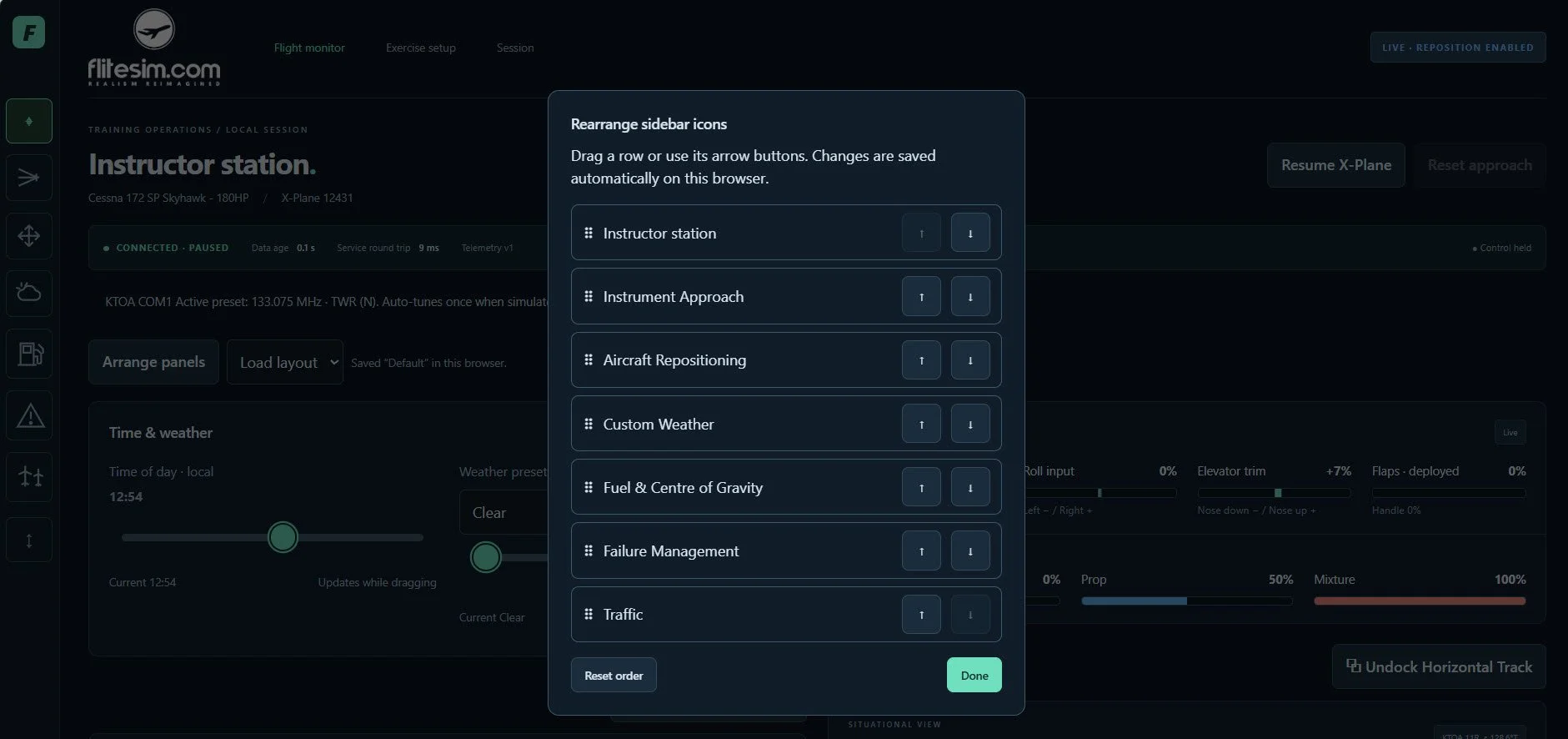
Every main workspace is one tap away in the left-hand sidebar. Hover over an icon to see its name, select it to change workspaces and use the reorder control to place the functions in the sequence that best suits your lessons.
The chosen sidebar order is saved automatically in that browser. The main dashboard can be arranged independently, with movable panels and reusable named layouts.
This gives each instructor a consistent workspace without forcing every lesson into the same screen arrangement.
First-Year Commercial License Included
Bring connected simulator management, guided practice, and detailed flight review into your training programme.
The first-year commercial license for the FliteSim.com Instructor Station is included with every purchase of a FliteSim.com Commercial System.

Give instructors real-time control over X-Plane 12 training sessions.
Monitor flight instruments, reposition aircraft, configure weather and failures, manage circuit traffic, and analyse instrument approaches—all from one user-friendly interface.